
Install & preferences
Install on Windows or macOS (Apple Silicon or Intel), then configure language, theme, hotkeys, and proxy port. This page also maps the current Proxy / View / Settings / About menus, config transfer, and updates.
Demo
Download and install DevPeek
Download the installer, run setup, and open DevPeek for the first time.
Get installers
On the homepage downloads, click Windows installer (v1.4.4), macOS installer (Apple Silicon · v1.4.4), or macOS installer (Intel · v1.4.0) for the latest installer. Pick the macOS build that matches your chip. Linux desktop is still coming soon.
If the download fails, wait a moment and try again, or check your network connection.
First launch
After install, open DevPeek. The main view defaults to Capture. To change language, theme, hotkeys, or port, open the Settings menu → Preferences.
- Language: pick a locale in Preferences, then press OK to save. Menus and labels update after save.
- Proxy port: local HTTP(S) proxy listen port (1–65535). The value is written only when you press OK in Preferences. If the port differs from what is already saved, the app restarts the local HTTP proxy to listen on the new port. If the new port cannot be bound (typically address already in use), save fails, the port rolls back, and the proxy is restarted on the previous port. If the port is unchanged, no restart runs.
- System proxy: when “Set as system proxy” is enabled, a successful Preferences save that changes the capture port also updates the OS HTTP(S) proxy to the new host:port (behavior depends on the OS).
Preferences window
Choose Settings → Preferences. The window has a left rail (Language / Theme / Hotkeys / Proxy), a right-hand form, and Cancel / OK at the bottom.
Demo
Language and theme preferences
Switch interface language and light/dark theme in Settings, and confirm changes with OK.
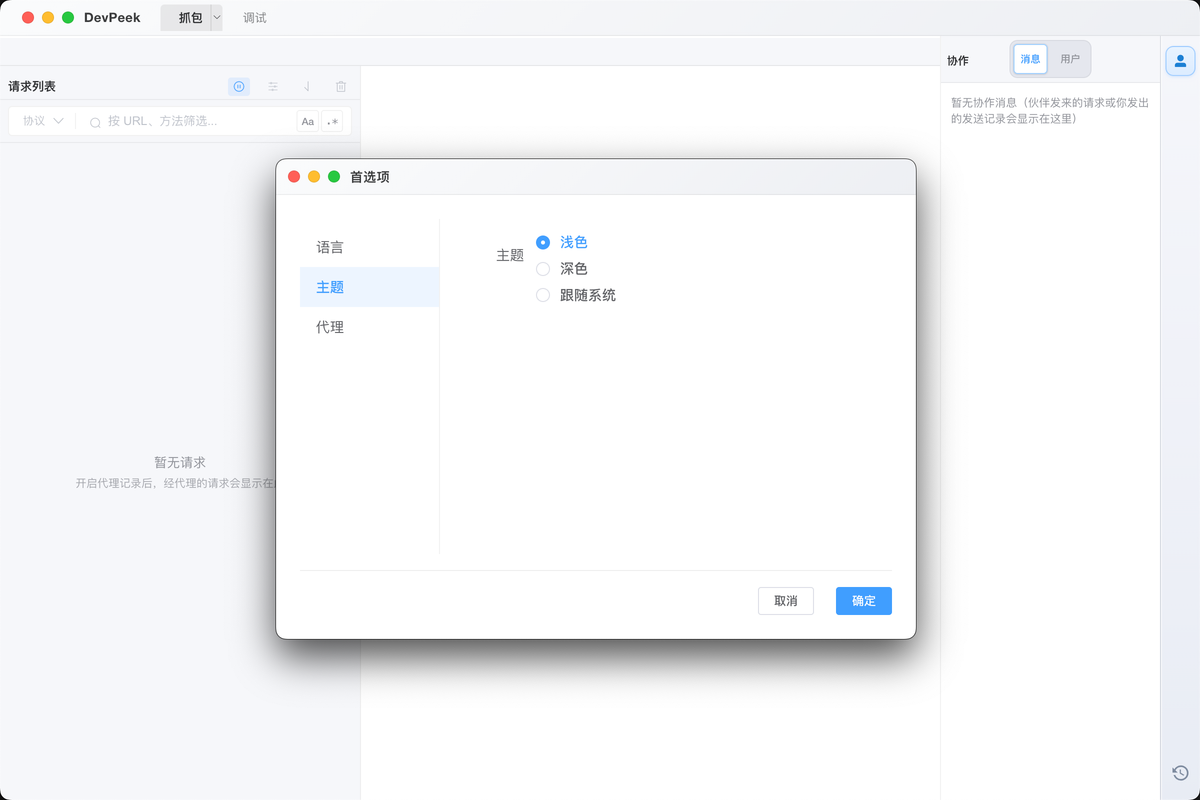
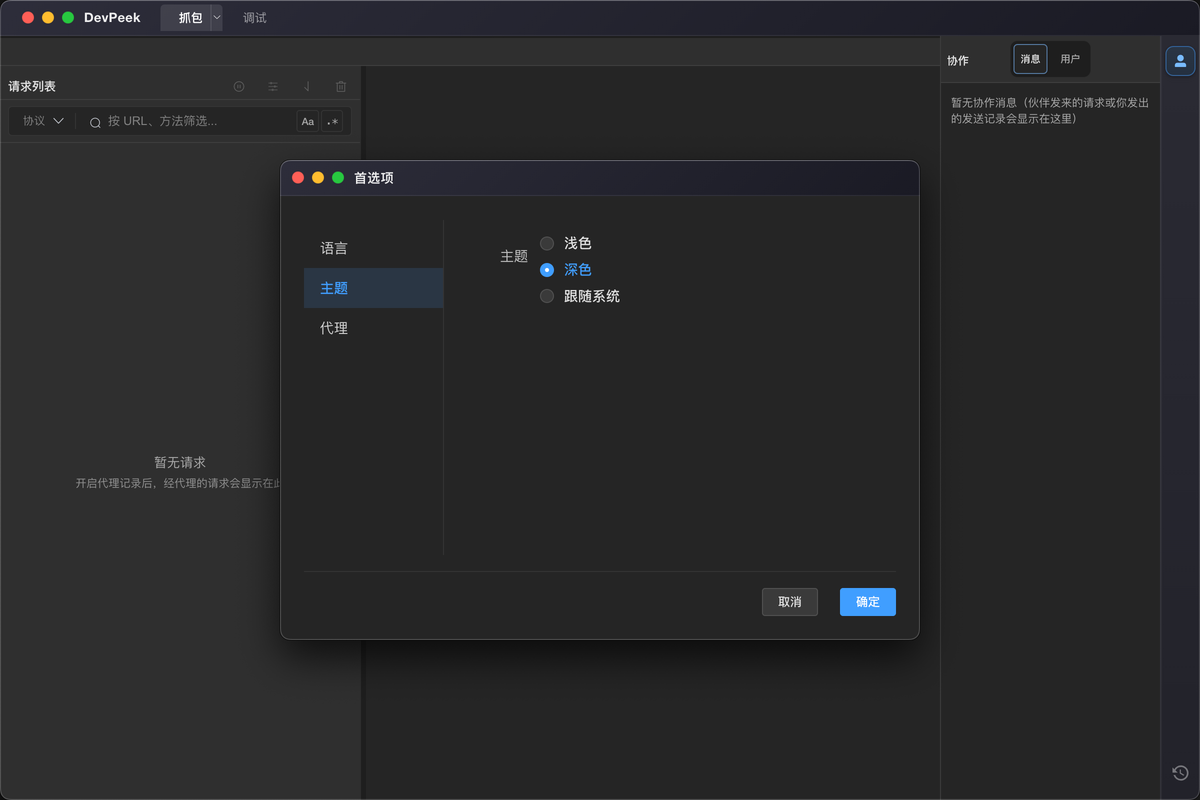
Groups are Language, Theme, Hotkeys, and Proxy. Invalid ports outside 1–65535 revert when the field blurs—nothing is saved until you press OK.
Language, theme, and port changes apply only after OK succeeds. Cancel, closing the window, or closing the standalone preferences window discards unsaved edits and leaves the on-disk settings as they were when you opened the dialog.
Language
Choose the UI locale from the dropdown. After OK, all windows refresh to the new language.
Theme
Pick Light, Dark, or System appearance; like language, it is persisted only on OK. After save the shell and common dialogs adopt the theme; System follows the OS light/dark mode.
Proxy port
Set the local capture port. Changing the port and saving may restart the proxy so the new port takes effect.
If binding the new port fails, save throws, configuration rolls back to the previous port, and the proxy is brought back on the old port; the UI keeps showing the old value. With Set as system proxy enabled, a successful port change also updates the OS HTTP(S) proxy host:port (details depend on the OS).
Hotkeys
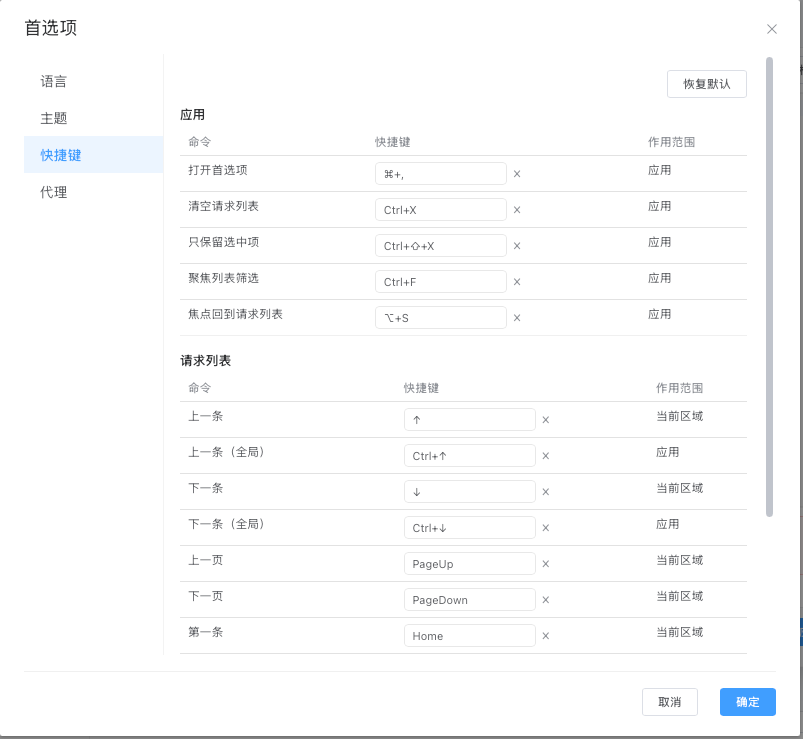
Preferences → Hotkeys lets you inspect and customize common actions. Save to apply; unsupported or conflicting combinations must be changed.
- The default Windows global summon shortcut is `Ctrl+Alt+D`, including while the window is hidden in the tray.
- Capture defaults include `Ctrl+F` for search, `Alt+S` for the list, `R` for Debug API, and `Ctrl+Shift+P` to pin or unpin.
- `Ctrl+X` clears the list and `Ctrl+Shift+X` clears others while keeping the selection; arrow keys, Home / End, and PageUp / PageDown navigate.
Check for updates
Open Release notes / update log from the menu to see new versions. If auto-update is enabled in your build and the network allows, updates download when prompted. If checks always fail, verify connectivity, restrictive networks, or whether your channel includes an update feed.
Full release notes on the web: changelog.
Export and import config
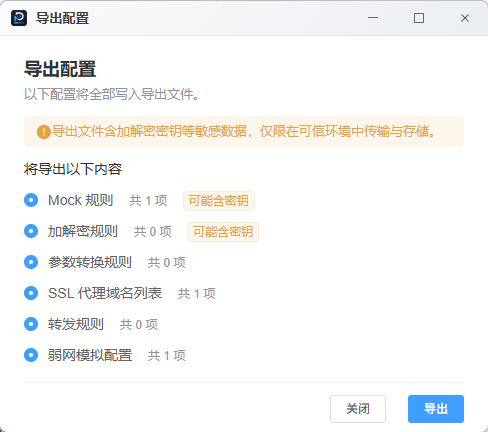
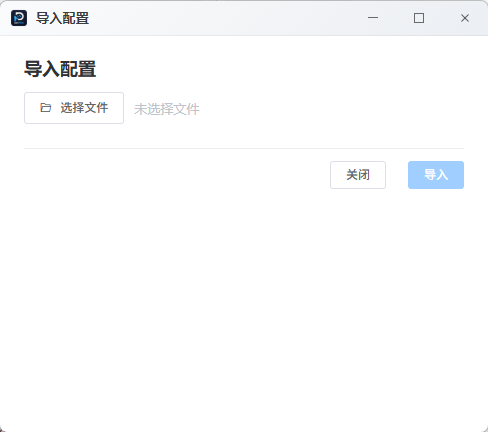
Use Settings → Export config / Import config, or drag a `.dpconfig` or `.json` file into the main window. You can move Mock, conversion, param transform, SSL include/exclude, forward rules, and weak-network settings. Export switches between minimal and expert mode, with select all / none. Exporting Mock also includes param transform and conversion rules; a depended-on item cannot be cleared alone, and the dialog explains why. Import groups entries as added, conflict, local-only, and already present, and only appends file contents—it does not delete config that exists only on this machine. New items import by default; identical items keep the local copy; an unchecked conflict keeps local, and a checked conflict takes the file. Exports may contain keys. You can also send a checked subset from the collaboration list; the peer writes it only after confirming.
Current menus and right rail
- About DevPeek: under About, with version, changelog, docs, feedback, and third-party notices.
- Recording / SSL / throttling / forward / Mock / WS Flow / transforms: collected under Proxy; Mock, WS Flow, and Forward are also available from the right rail.
- View menu and right rail: switch Capture / Debug and Phone, Collaboration, Mock, WS Flow, Forward, and History panels. Panel state and width persist.